

Our Audit Lists feature is an efficient way for our auditors and coders to track any custom list of items. Examples include an ongoing record of Provider and Practice assessments, specific custom Encounter requirements or any general quality check items.

Step 1) Create a List
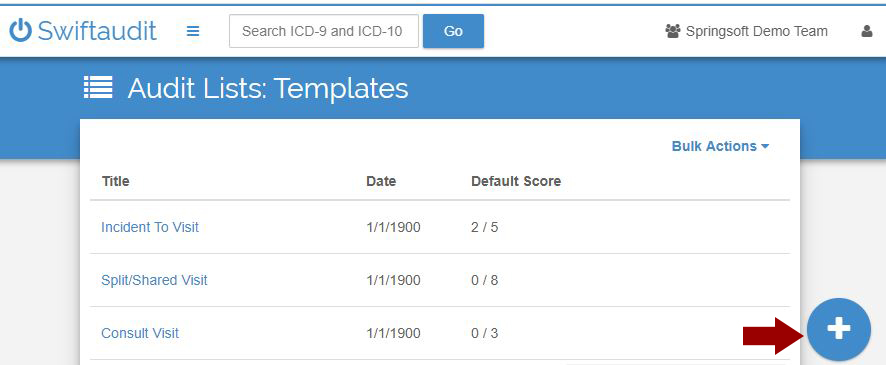
To create a new list, go to the Audit Lists option on the main menu.

You can add a new, custom list by clicking on the + sign.
Build your list with checklist items and dropdowns. You write the text and provide the options and answers. Questions can be weighted and lists are scored.

Step 2) Assign the List
You can assign lists to Providers, Practices or Encounters.
Provider / Practice Lists:

Encounter Lists:

Once you reach the Assign Lists screen, you can add or delete as many lists as you’d like. Assign the same list with a new date stamp to track answers over time. This could be a real game changer when you need to keep an eye on quality control or add a customized list of questions to your Encounters.
You can even share lists with your favorite auditor or coder by easily downloading them using the Bulk Actions menu in the upper right corner of the Audit Lists: Templates screen.
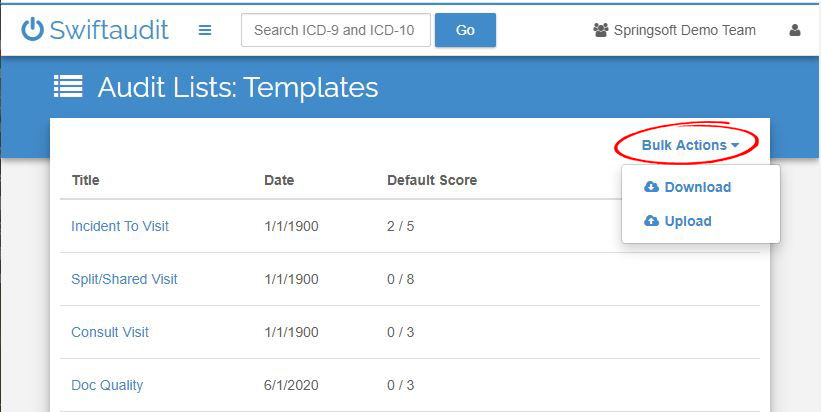
To get you started we’d like to send you the checklists for Split/Shared Visits and Incident To Visits. Click on this List Link and save the file on your system. Go to the Audit Lists screen and click on the Upload option under Bulk Actions in the upper right corner. V
We hope you’ll give our List feature a try and tell us what you think. And once you get rolling we’d love to hear your creative ideas on how you’re using Lists. Sharing great ideas with our community of auditors and coders helps to make us all more efficient and successful.
 Assistant