
In addition to using industry-leading data encryption, we also offer 2-step authentication (MFA) for all accounts, to provide the very best in HIPAA compliant security protocols.
How to Enable 2-Step Verification
Step 1) Go to Account-> Settings
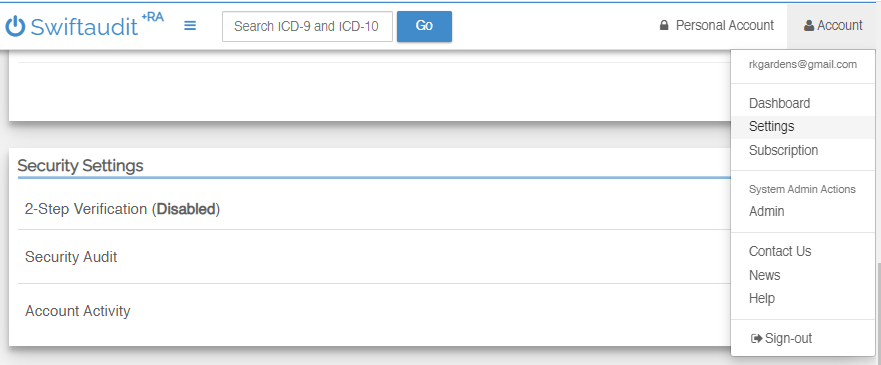
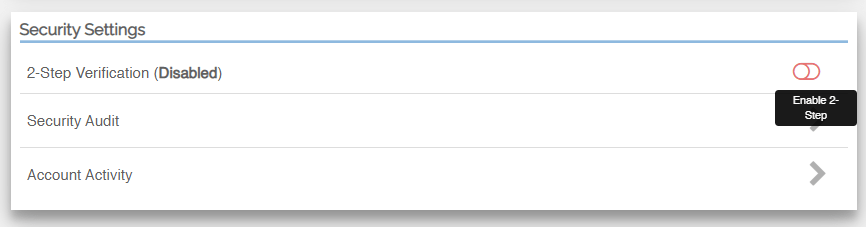
Step 2) Scroll to the Security Settings and click 2-Step Verification to “on” at the right.
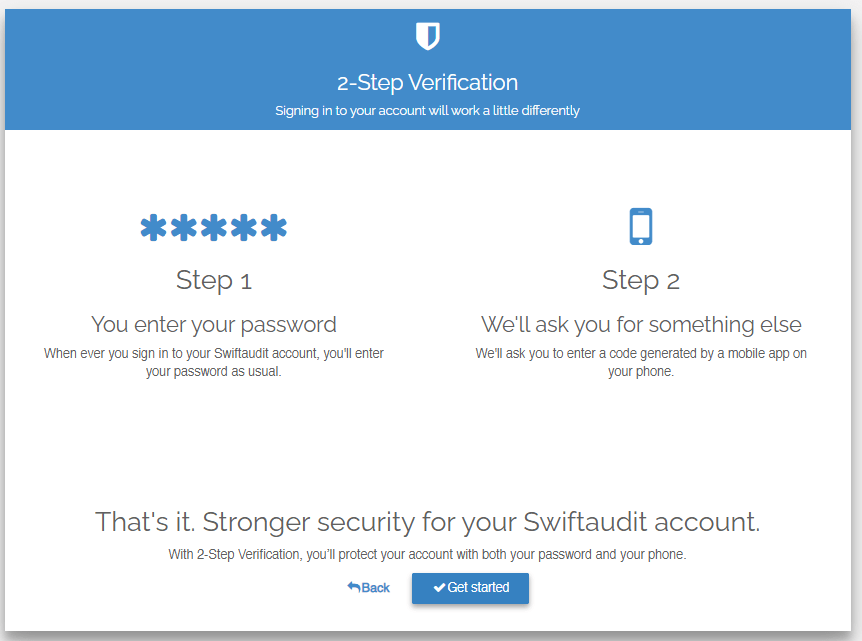
The next screen explains how 2-Step Verification works. Click the Get Started button to begin the activation process.
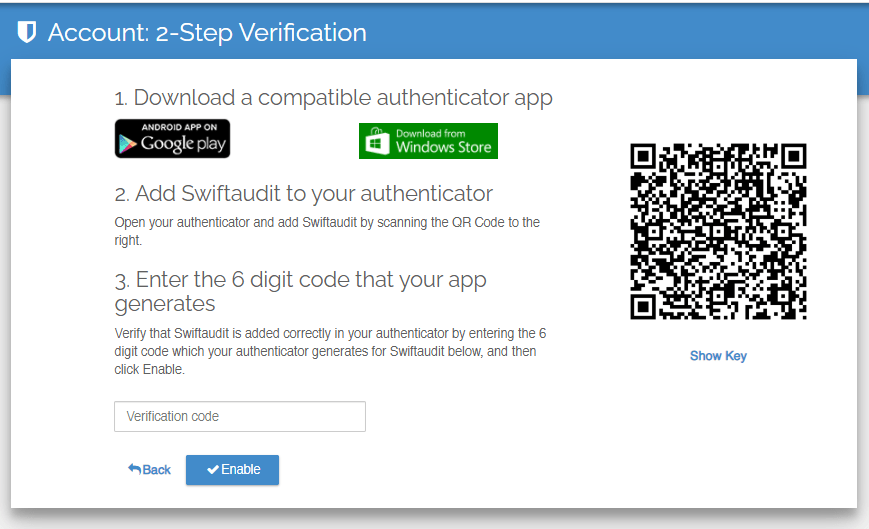
Step 3) Follow the instructions on screen and install an authenticator app. Once enabled, you’ll be required to enter a verification code generated by your app every time you log in.
You can disable this extra verification step at any time by turning 2-Step “off” on the settings screen.
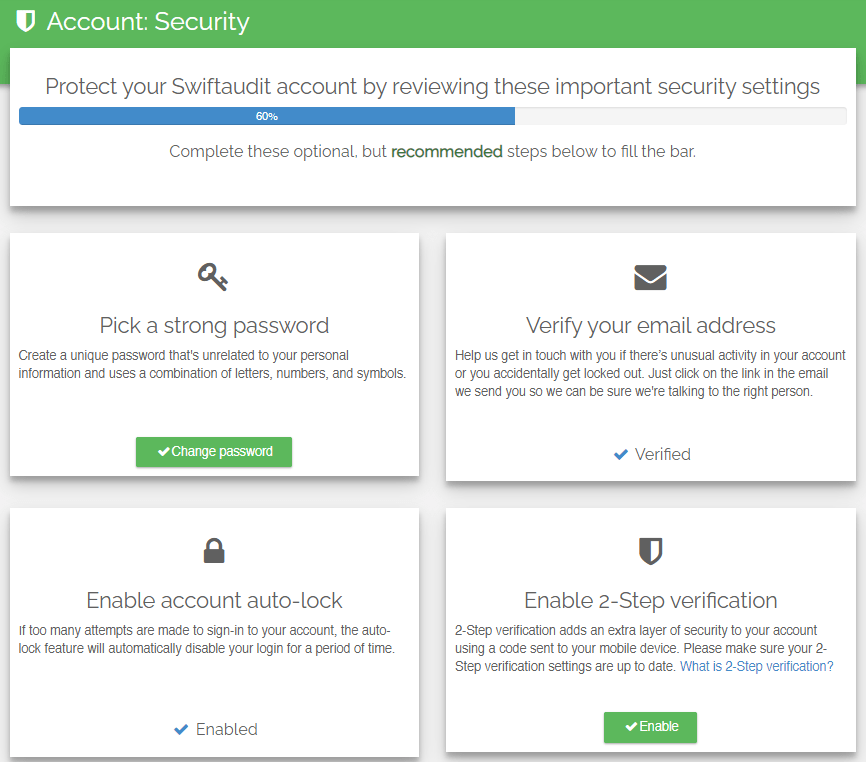
We also provide a convenient Security Audit process that allows you to review your Swiftaudit security settings at any time. You can access this audit screen from the Account -> Settings, just below the 2-Step Verification setting.
If you have any questions regarding the security settings on your account, please feel free to Contact Us at any time. Your privacy and data security are important to us.
 Assistant